Sub Admin Settings

QPunch allows subscription owners to delegate administrative responsibilities by assigning Sub Admin roles to selected users within a subscription. This setup enables multiple users to manage subscription-level settings while maintaining controlled access. This documentation helps you understand how to configure Sub Admin settings and assign up to three users with administrative access in QPunch Smart Project Management Tool. 

To configure Sub Admin settings: 

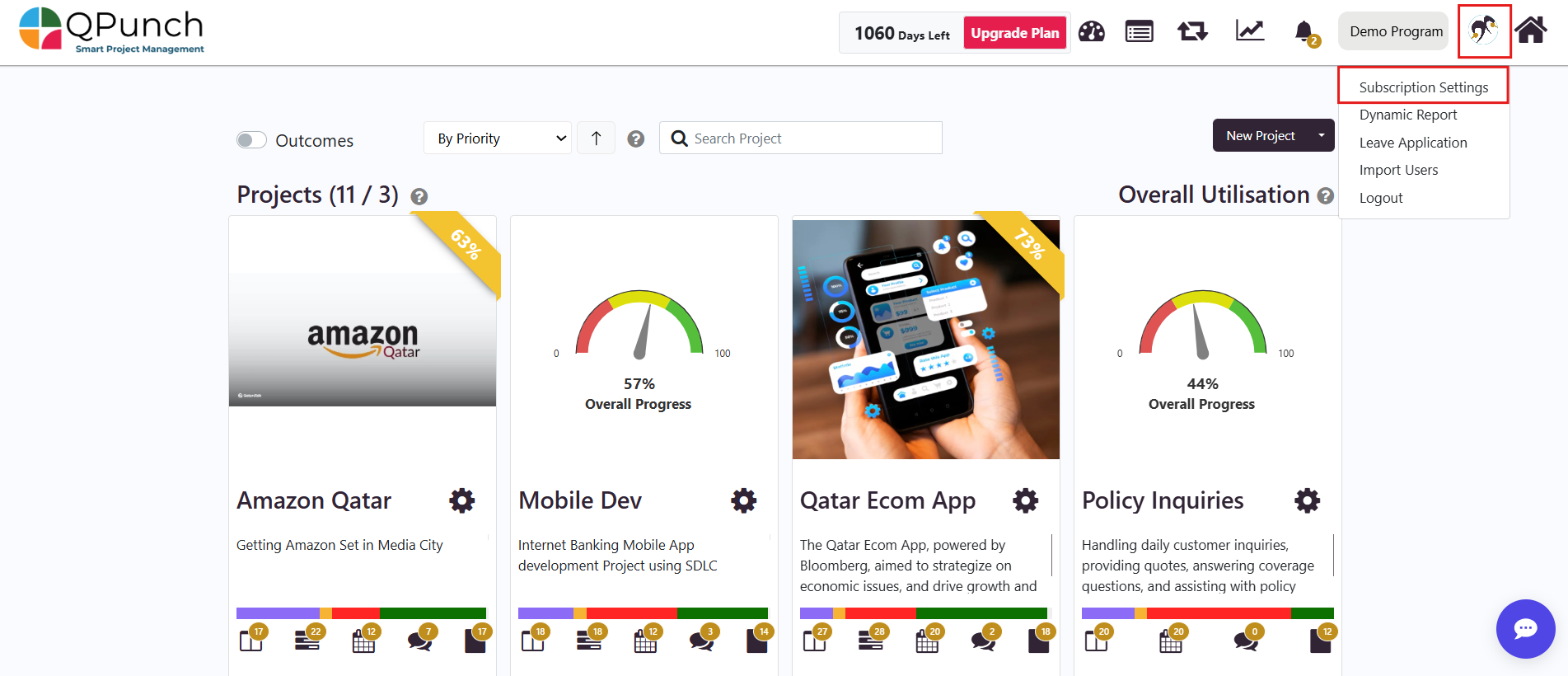
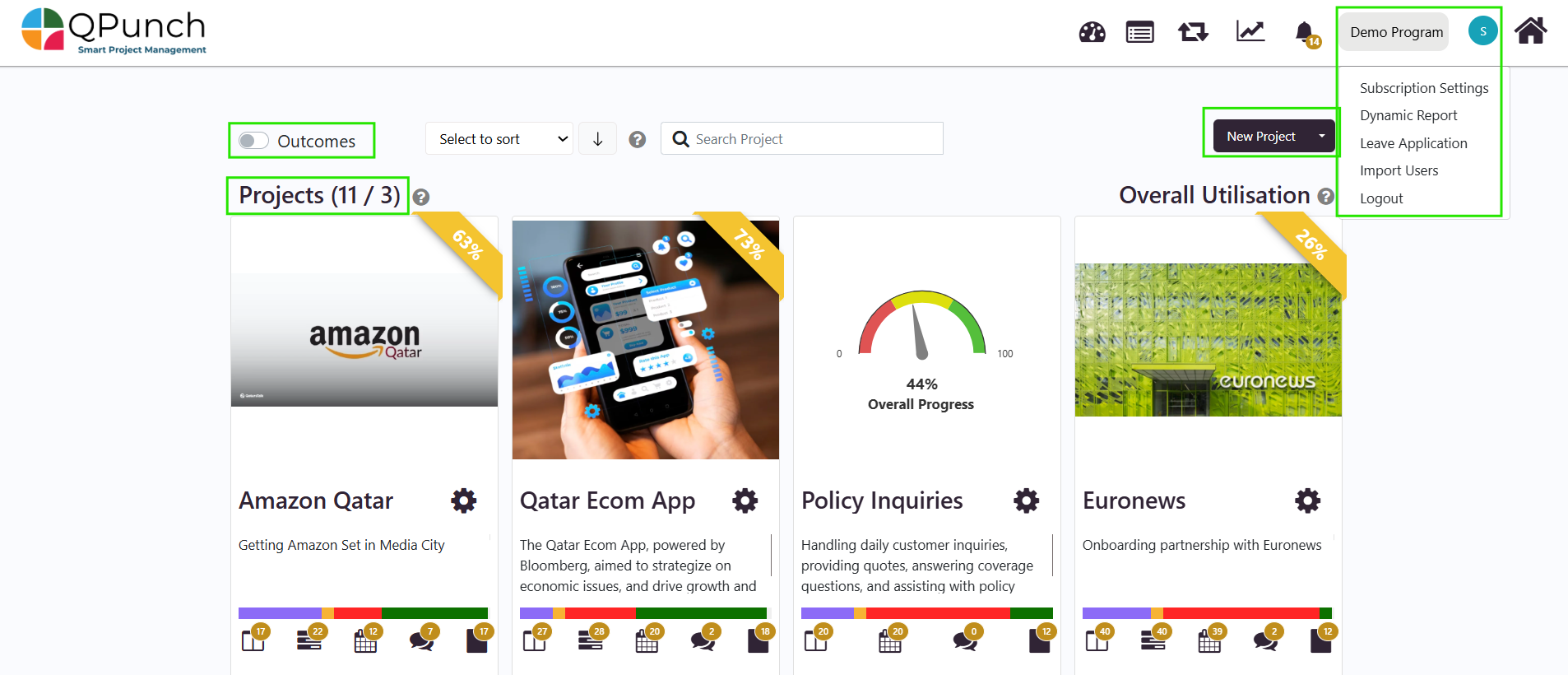
  • Click on the username icon at the top-right corner of the QPunch home page. 
  • Choose Subscription Settings from the menu. 
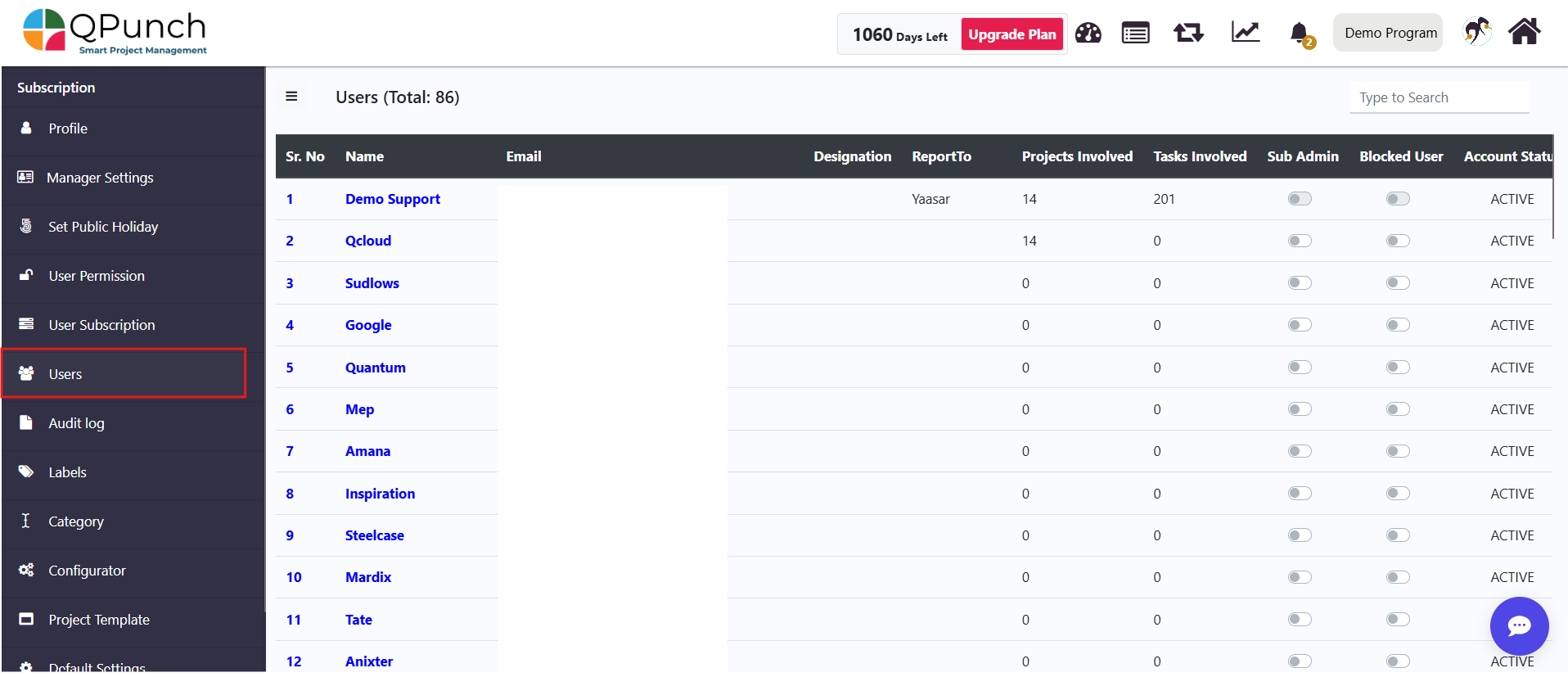
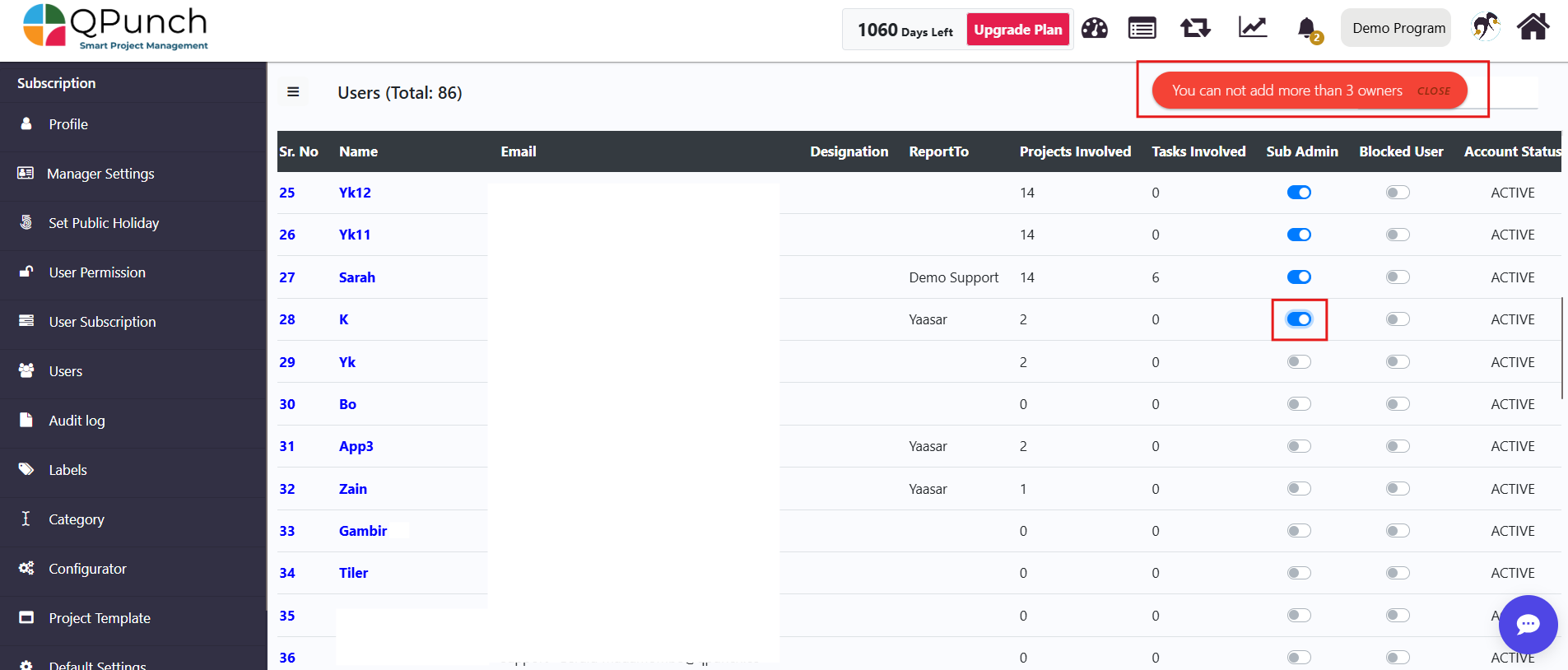
  • Navigate to the Users tab to view the list of users under the subscription. 
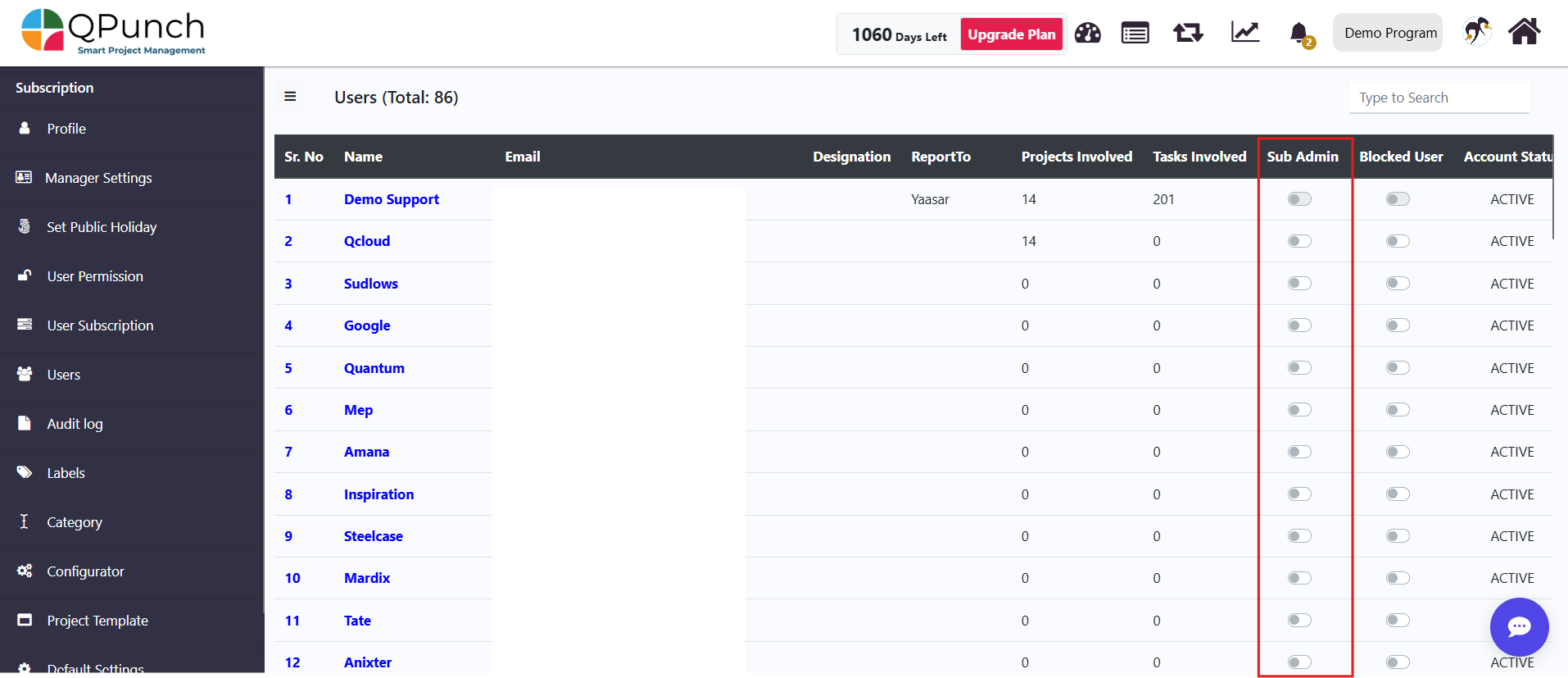
  • Each user in the list includes a toggle option to assign the Sub Admin role. 
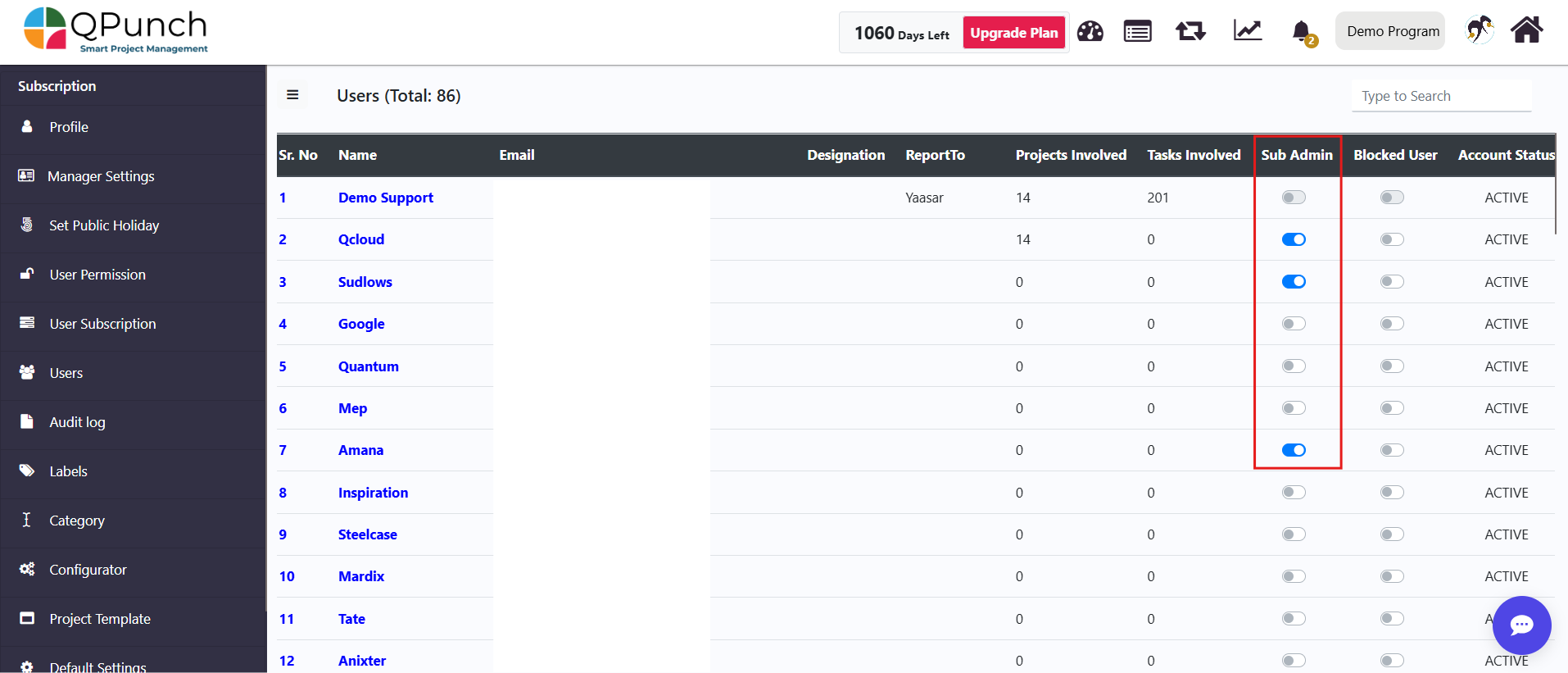
  • Enable the toggle for the users you want to assign as Sub Admins. 
    • A maximum of three users can be assigned to the Sub Admin role at any given time. 
    • An error message will appear if the owner attempts to add more than three Sub Admins. 
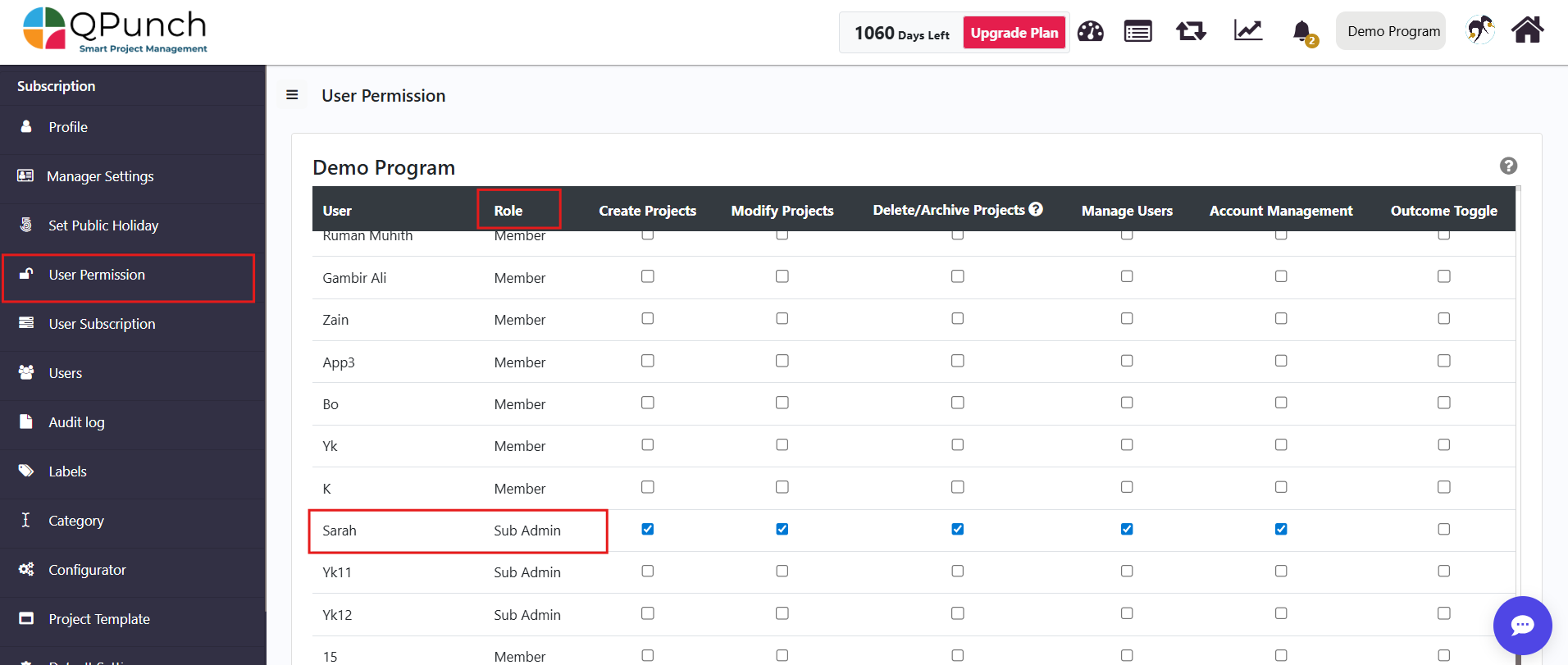
  • Once enabled, the user’s role will be updated and displayed as Sub Admin next to their name in the User Permissions section within the Subscription Settings.
  • Sub Admins will have permissions like the subscription owner, allowing them to manage most subscription-level settings. The only exceptions are User Subscription and Upgrade Plan settings, which remain accessible only to the subscription owner. 
    • The image below illustrates the Sub Admin view within the Demo Program subscription. Sub Admins have visibility across all projects, can create new projects, and have access similar to a subscription owner. The only exception is the Upgrade Plan setting, which is visible exclusively to subscription owners. 

Managing Sub Admin Access: 

  • Sub Admin access can be enabled or disabled at any time by the subscription owner. 
  • If the maximum limit of three Sub Admins is reached, one Sub Admin must be removed before another can be added. 
  • Sub Admins can perform administrative actions without impacting ownership of the subscription. 

Conclusion

In summary, Sub Admin settings in QPunch help distribute administrative responsibilities while maintaining control over critical subscription functions. By assigning Sub Admin roles, teams can collaborate more efficiently and ensure uninterrupted management of projects and settings across the organization.